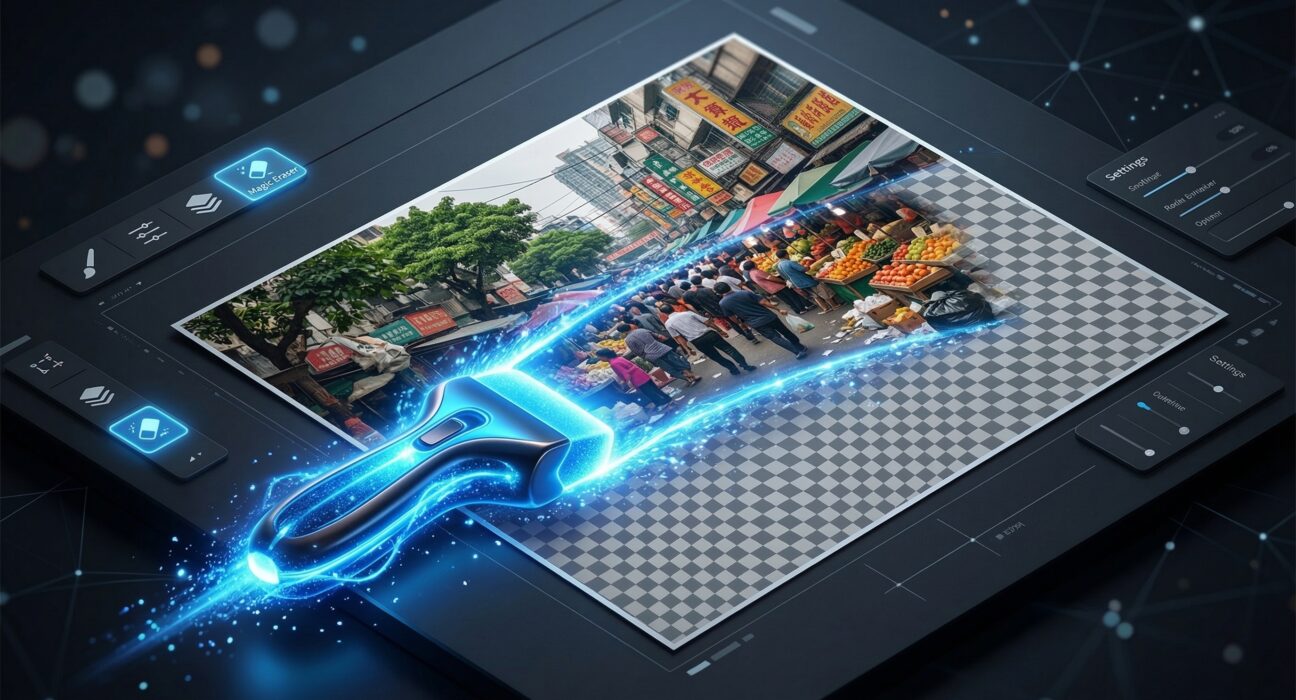
In the modern digital landscape, the “transparent PNG” is the building block of professional design. Whether you are creating a thumbnail for a YouTube video, a product listing for Amazon, or a sleek corporate headshot, the ability to cleanly separate a subject from its environment is essential.
Historically, this required hours of “Pen Tool” work in Photoshop. By 2026, AI has turned this tedious chore into a one-click miracle. However, not all “free” tools are created equal. Some hide high-resolution downloads behind paywalls, while others struggle with the “fine-hair” challenge. This step-by-step guide to the best free background removers will help you find the professional tool that fits your workflow without cost.


1. Adobe Express: The Professional Precision Choice
Adobe Express has evolved into the strongest free competitor in 2026, leveraging the same “Sensei” AI technology found in Photoshop.
- The High-Resolution Advantage: While many free tools limit you to a tiny, blurry preview, Adobe Express allows you to download your transparent images in high resolution.
- Refined Edge Detection: It excels at “The Hair Problem.” In 2026, Adobe’s AI can differentiate between fine strands of hair and a complex background with a level of accuracy that was previously impossible.
- The “Continue Editing” Suite: Once the background is gone, you aren’t just left with a file. You can immediately drop that cutout into a flyer, a social media post, or an ad template within the same free workspace.
A common mistake to avoid is thinking you need a full Creative Cloud subscription. The background remover in Adobe Express is a standalone feature that remains free for individual users, even in 2026.
2. NoteGPT / Kamero: The Unlimited Batch Powerhouse
New for 2026, tools like NoteGPT and Kamero have disrupted the market by offering something the big players won’t: Unlimited Batch Processing.
- The Efficiency King: If you are an e-commerce seller with 100 product photos, you don’t want to upload them one by one. These tools allow you to drag and drop an entire folder.
- On-Device Processing: Unlike older cloud-based tools, many of these 2026 challengers use browser-based AI. This means your images never leave your computer, making it the most private and secure way to handle sensitive photos.
- Zero Watermarks: These tools prioritize speed and utility. You get clean, watermark-free exports in the original dimensions of your upload.
3. Pixlr: The Designer’s Precision Toolkit
Pixlr has positioned itself as the “Prosumer” choice. It’s for the person who wants the AI to do 99% of the work but wants the Manual Tools to fix the final 1%.
- Fine-Tune Brushes: Sometimes an AI misses a small detail (like the gap between an arm and a torso). Pixlr provides a “Restore/Remove” brush that lets you manually paint the background back in or out with adjustable softness.
- AI Backdrop Generation: In 2026, Pixlr doesn’t just remove the background; it offers an “AI Backdrop” feature where you can type a prompt (e.g., “Placing the product on a white marble table with soft morning light”) to replace the void instantly.
- Batch to Zip: You can process over 100 images at once and download them all in a single, organized ZIP file.

4. Photopea: The Browser-Based Photoshop
Photopea is a legend in the creative community. It is a full-featured photo editor that runs in your browser and is entirely free.
- Multiple Methods: Photopea offers three distinct ways to remove backgrounds:
- Select > Remove BG: A one-click AI solution.
- Magic Cut: A semi-automatic tool where you mark the subject in green and the background in red.
- Chroma Key: For those working with green or blue screens.
- Non-Destructive Masking: Unlike other tools that “delete” the pixels, Photopea creates a Layer Mask. This means you can always go back and recover a part of the image you accidentally removed.
- Best For: Advanced users who need the power of Photoshop without the monthly bill.
5. Photoroom: The E-commerce Specialist
If you are selling on eBay, Poshmark, or Shopify, Photoroom is the industry leader for “Product Staging” in 2026.
- Product-Focused AI: Its AI is specifically trained to recognize objects. It handles “Transparent Objects” (like wine glasses or sunglasses) better than any general-purpose tool.
- Realistic Shadows: Removing a background often makes an object look like it’s “floating.” Photoroom automatically generates a realistic contact shadow based on the object’s shape, making it look like it’s actually sitting on a surface.
- Mobile First: Their mobile app is the fastest in the world for 2026. You can take a photo of an item on your carpet and, within three seconds, have a professional studio-quality listing.
Comparison: Which Tool Should You Use?
| Feature | Adobe Express | NoteGPT / Kamero | Pixlr | Photopea | Photoroom |
| Best For | High-Res Quality | Bulk / Speed | Fine-Tuning | Pro Editing | E-commerce |
| Batch Support | No | Yes (Unlimited) | Yes (up to 100) | No | Yes (Pro) |
| Manual Refine | Minimal | No | Excellent | Elite | Moderate |
| Resolution | High | Original | Up to 8K | Original | Standard (Free) |
| Shadows? | No | No | No | Manual | Auto-AI |
Pro Tip: The “Checkerboard” Quality Test
Based on industry research, the biggest failure in background removal is “Edge Haloing”—when a thin line of the old background remains around the subject. To check your quality:
- Download your “Transparent” PNG.
- Open it in a tool like Canva or Pixlr.
- Place a Bright Red or Solid Black square behind it.
- Zoom in. If you see white or colored “fuzz” around the edges, the tool’s AI isn’t high enough quality for your specific image.
Final Thoughts
In 2026, the technology is no longer the bottleneck—your workflow is.
- Use NoteGPT if you have a mountain of photos to process fast.
- Use Adobe Express for that one perfect, high-res headshot.
- Use Photoroom if you need your products to look like they were shot in a professional studio.
By choosing the right “Free” tool for the specific job, you can achieve agency-level results with zero overhead.