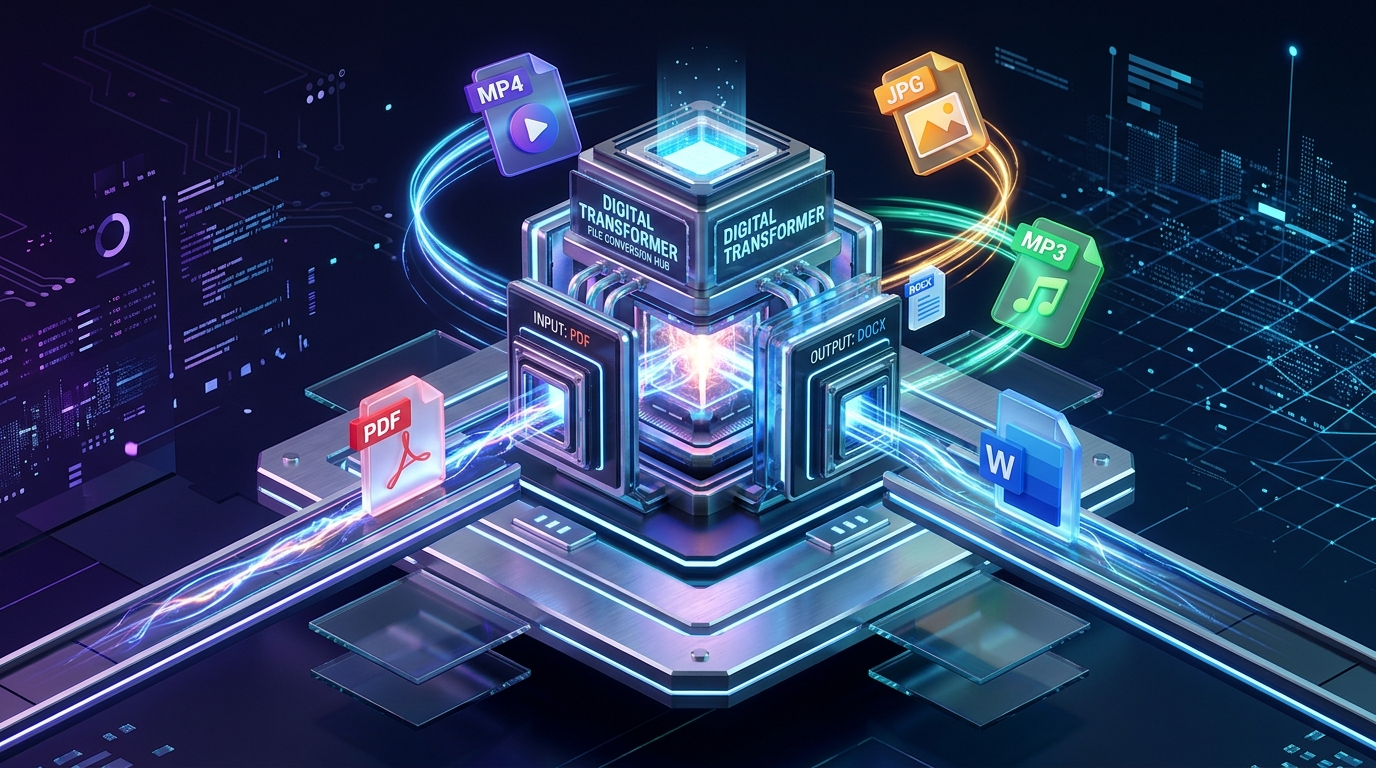
We live in an era of Format Fragmentation. While we have more power to create than ever before, our devices are often locked in “Silos.” An image taken on a high-end smartphone might not open in a traditional design program; a professional audio recording might be in a lossless FLAC format that a standard social media uploader rejects.
The “Golden Rule” of 2026 file management is Interoperability. Your work is only as valuable as its ability to be shared and viewed. The platforms that have dominated 2026 are those that offer Cloud-Native Processing, End-to-End Encryption, and support for over 200+ different file types.
The most effective way to maintain a seamless workflow today is to stop relying on heavy desktop software and start using “Browser-First” conversion engines. These five websites are 100% free, require no installation, and provide enterprise-grade results for $0.
1. CloudConvert: The “Universal” Precision Engine
In 2026, CloudConvert remains the industry standard for reliability. It is the “Swiss Army Knife” of the internet, supporting over 200 different formats across audio, video, document, ebook, archive, image, spreadsheet, and presentation categories.
- High-Fidelity Codec Support: CloudConvert doesn’t just “change the extension.” It uses high-end libraries to ensure that when you convert a video from MKV to MP4, the color grading and audio sync remain perfect. In 2026, this “Lossless Mentality” is what separates professional tools from amateur ones.
- The “Format-Specific” Settings: This is CloudConvert’s “Superpower.” When you convert an image, you can adjust the dimensions, the quality, and even strip out metadata (EXIF) for privacy. For video, you can change the resolution, aspect ratio, and constant rate factor (CRF).
- Google Drive & Dropbox Integration: You don’t have to download files to your local machine. You can pull a 500MB file directly from your cloud storage, convert it on CloudConvert’s servers, and save it back to your cloud. In 2026, this “Cloud-to-Cloud” workflow saves massive amounts of bandwidth and time.
- Advanced Security Protocols: CloudConvert is 100% transparent about its security. Files are deleted the moment the conversion is finished (or within 24 hours if you choose). It is one of the few free tools that is fully GDPR compliant, making it safe for corporate use.
A common mistake to avoid is ignoring the “Options” gear icon. In 2026, default settings are often “Middle of the Road.” If you need a high-quality print of a converted PDF or a crystal-clear audio file, take 10 seconds to adjust the Bitrate or DPI settings to ensure the output matches your specific needs.
2. Zamzar: The “Simplicity” Pioneer
If CloudConvert is a “Control Panel,” Zamzar is a “Single Button.” Founded in 2006, it has survived two decades by focusing on a clean, three-step process that anyone can master in seconds.
- The “Email and Forget” Workflow: Zamzar was the first to offer “Email Conversion.” You can email an attachment to a specific Zamzar address, and they will email you back the converted link. In 2026, this is a lifesaver for mobile users who don’t want to navigate complex web interfaces on a small screen.
- Hyper-Clean User Interface: There are no distracting ads, no pop-ups, and no “fake” download buttons. In 2026, where “Dark Patterns” are common, Zamzar’s honesty is refreshing. It tells you exactly how long your conversion will take and where it is in the queue.
- Legacy Format Support: While others focus on the “New,” Zamzar is the best at the “Old.” If you have an ancient WordPerfect file or a 15-year-old CAD drawing that modern apps won’t touch, Zamzar’s “Legacy Library” usually has the solution.
- The “Developer API”: While the website is for everyone, Zamzar offers a robust API for developers who want to integrate file conversion into their own apps. In 2026, this infrastructure powers thousands of small startups and automation scripts.
3. Convertio: The “Aesthetic” Powerhouse
Convertio is the 2026 favorite for designers and aesthetic-focused professionals. It features a sleek, dark-mode interface and the most intuitive “Format Selection” menu in the industry.
- Format Suggestion AI: When you upload a file, Convertio doesn’t just show you every format; it uses AI to suggest the most likely targets. If you upload a PNG, it prioritizes WebP, JPG, and SVG, saving you from scrolling through hundreds of options.
- OCR (Optical Character Recognition): Convertio’s free tier includes a basic OCR engine. You can upload a photo of a document or a non-searchable PDF, and it will convert it into a fully editable Word or Text file. In 2026, turning “Analog Data” into “Digital Text” is a daily requirement.
- Font Conversion: This is a niche feature that makes Convertio a designer’s best friend. It can convert
.otf,.ttf, and.wofffiles, ensuring your brand’s typography is consistent across web and print. - Browser Extension Support: You can install the Convertio extension for Chrome or Edge. This allows you to right-click any image or link on the web and “Convert and Save,” bypassing the “Download-then-Upload” loop entirely.
4. Online-Convert: The “Target-Device” Expert
Online-Convert takes a different approach. Instead of asking “What format do you want?”, it asks “Where are you going to use it?”. It is the best tool for users who aren’t technical experts but know what device they are using.
- Preset Target Conversions: They have categories for “Convert for Kindle,” “Convert for PlayStation,” “Convert for Android,” and “Convert for Instagram.” The tool automatically sets the perfect resolution, bitrate, and file size limits for that specific platform.
- Specialized “Webservice” Converters: Need to convert a video specifically for YouTube’s 2026 8K standards? Or an image for a specific e-commerce platform’s thumbnail requirements? Online-Convert has a preset for that.
- Archive and Hash Tools: Beyond standard files, it can create and extract complex archives (7Z, TAR, GZ) and even generate “Hashes” (MD5, SHA-256) to verify the integrity of a file. In 2026, “Data Verification” is a key part of cybersecurity.
- Screenshot to PDF: You can enter a URL, and Online-Convert will render the entire webpage and convert it into a high-quality PDF. This is the #1 tool for researchers who need to “Freeze” a webpage for future citation.
5. TinyWow: The “No-Limit” Privacy Champion
TinyWow is the “Disruptor” of the 2026 conversion space. It was built with a simple philosophy: Everything should be free, and nothing should be stored.
- Zero File Size Limits (Mostly): While most “Free” tiers cap you at 50MB or 100MB, TinyWow allows for much larger files. It is the go-to for converting long-form video or massive 1,000-page PDF documents that other sites reject.
- Extreme Privacy (The 1-Hour Rule): Every file uploaded to TinyWow is deleted automatically after 60 minutes. They do not keep backups, they do not sell data, and they do not require an account. In 2026, this is the “Gold Standard” for privacy-conscious users.
- The “Everything” Toolkit: TinyWow isn’t just a converter. It’s a “Digital Utility Belt.” It includes tools to remove backgrounds from images, sign PDFs, split and merge files, and even “Fix” corrupted video files.
- No “Premium” Nagging: Unlike other sites that constantly ask you to “Upgrade to Pro,” TinyWow is supported by unobtrusive ads. It provides a “Pro” experience for everyone, regardless of their budget.
Comparison: Which 2026 Converter Matches Your Workflow?
| Platform | Best For | Technical Strength | Unique 2026 Feature |
| CloudConvert | Professionals | Lossless Codec Logic | Cloud-to-Cloud Sync |
| Zamzar | Simplicity / Mobile | Legacy Format Support | Email-to-Convert |
| Convertio | Designers / OCR | Font & Vector Logic | AI Format Suggestions |
| Online-Convert | Device-Specific | Platform Presets | Screenshot-to-PDF |
| TinyWow | Privacy / Large Files | No Account / 1-Hr Delete | Video Corruption Fix |
The 2026 “Security First” Protocol: 3 Steps to Safe Conversion
In 2026, a file is not just data; it can be a “Container” for risk. To ensure your digital safety when using free conversion websites, follow the “Scrub-Secure-Verify” protocol:
- Phase 1: The “Metadata Scrub” (CloudConvert): Before converting a personal photo or a confidential document, use the settings to “Remove EXIF data.” This ensures that your location, device ID, and timestamps aren’t embedded in the new file.
- Phase 2: The “Link Security” (Zamzar / TinyWow): If you are sharing a conversion link with a client or colleague, ensure the platform uses HTTPS and check the expiration. Tools like TinyWow are best for this because the link self-destructs after an hour, preventing “Data Leaks” in your email history.
- Phase 3: The “Integrity Check” (Online-Convert): For sensitive software or large archives, use a Hash Generator to verify that the file wasn’t altered during the conversion process. If the MD5 hash before and after matches (for simple format shifts), you know the file is “Clean.”
Understanding 2026 File Formats: A Quick Guide
To use these tools effectively, you must understand what you are converting into. Here are the 2026 “Golden Standards”:
- WebP / AVIF (Images): These have replaced JPG for web use. They are 30-50% smaller with the same quality. Use Convertio to shift your entire site library to these formats to boost your SEO and speed.
- HEVC / AV1 (Video): These are the high-efficiency video codecs of 2026. If you have a video that is too large to email, convert it to AV1 using CloudConvert for the best “Quality-to-Size” ratio.
- EPUB (Ebooks): Avoid PDF for reading on mobile. PDF is “Fixed Layout,” meaning you have to zoom in and out. Convert your PDFs to EPUB using Zamzar so the text reflows to fit your screen perfectly.
- SVG (Graphics): If you have a logo that looks “Blurry” when you scale it up, it’s a raster image (PNG/JPG). Convert it to SVG (Vector) using Convertio so it stays sharp at any size.
Final Thoughts
In 2026, your File Converter is your “Digital Translator.” It is the bridge that allows a designer in London to work with a developer in Mumbai, or a student in a rural area to access high-end research papers on a budget smartphone.
By leveraging the “Total Precision” of CloudConvert, the “Simplicity” of Zamzar, or the “Privacy” of TinyWow, you are effectively removing the “Friction” from your digital life for $0. The formats are complex, the codecs are advanced, but the tools are free. Your only job now is to Select the Target.