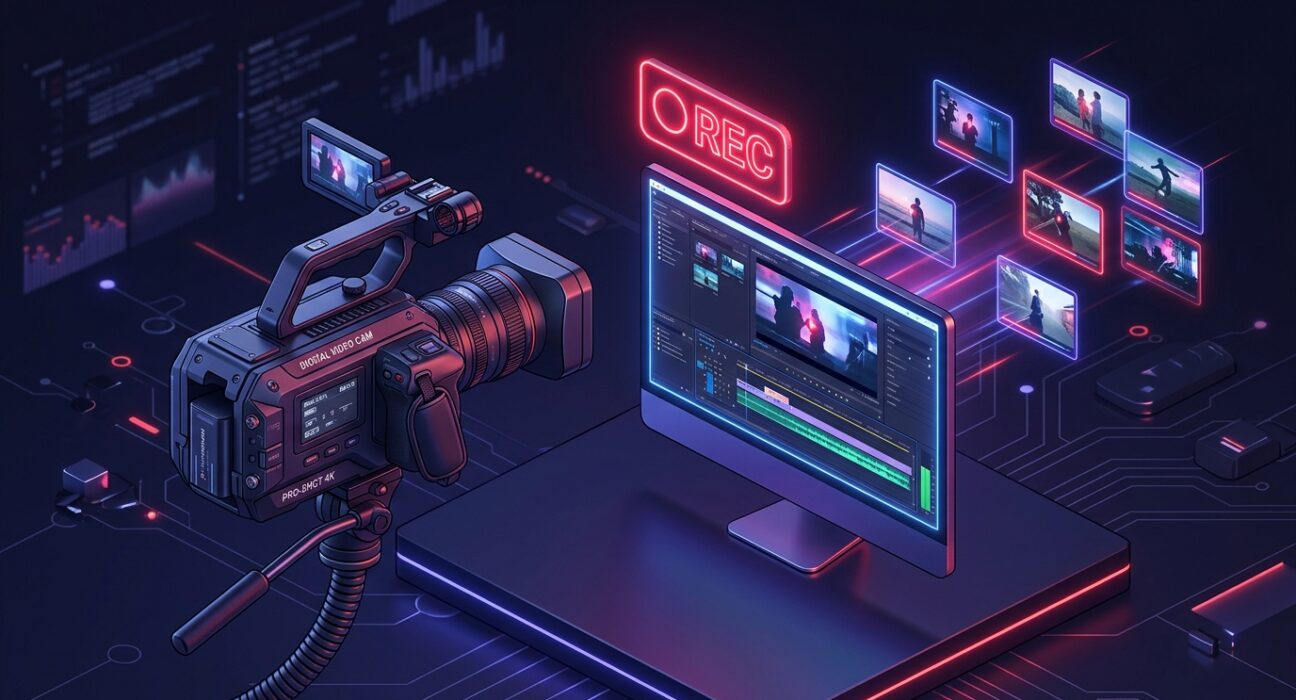
In 2026, the “Written Manual” is a relic of the past. We have entered the era of Video-First Documentation. Whether you are a developer showing a client how to use the Waply plugin, an educator creating a course on Indian history, or a YouTuber building an audience, your screen recorder is your most essential piece of “Digital Real Estate.” It is the bridge between what you see on your monitor and what your audience understands in their mind.
The “Golden Rule” of 2026 screen recording is Frictionless Delivery. It is no longer enough to just “record” a video; you must be able to edit, host, and share it in seconds. The platforms that have dominated 2026 are those that offer Cloud-Instant Sharing, AI-Powered Noise Cancellation, and High-Definition (4K) Output on their free tiers.
The most effective way to scale your brand today is to use video to “show, not tell.” This step-by-step guide to the top 5 free screen recording tools of 2026 will show you how to build your video library for $0.
1. OBS Studio: The “Pro-Grade” Powerhouse
In 2026, OBS Studio (Open Broadcaster Software) remains the undisputed heavyweight champion of the free world. It is open-source, 100% free forever, and offers features that even paid software struggles to match. If you want Zero Limits, this is your tool.
- Unlimited Recording Length & No Watermarks: OBS does not restrict you. You can record a 10-hour coding session in 4K at 60fps, and it will never ask for a subscription or slap a logo over your work.
- Complex Scene Composition: This is why professionals love OBS. You can create “Scenes” that mix your screen, your webcam, a scrolling text overlay, and even a “Picture-in-Picture” view of your mobile app. In 2026, “Multi-Source” recording is the key to high-production-value tutorials.
- Virtual Camera & Plugin Ecosystem: New for 2026, the “Virtual Camera” allows you to take your OBS scene and pipe it directly into Zoom or Microsoft Teams. Plus, with thousands of community plugins, you can add AI-background removal or “Twitch-style” chat overlays for free.
- Local Recording for Maximum Quality: Unlike cloud-based tools that compress your video, OBS records directly to your hard drive. This ensures that every line of code in your IDE is crisp and readable, which is vital for technical SEO and high-quality YouTube content.
A common mistake to avoid is ignoring the “Auto-Configuration Wizard.” OBS is powerful but complex. In 2026, the software includes an AI wizard that scans your hardware (CPU/GPU) and sets the perfect bitrate and encoder for you. Do not try to manually guess your settings; let the tool optimize for your specific PC or Mac.
2. Loom (Free Tier): The “Async Communication” Specialist
If OBS is a “Production Studio,” Loom is a “Video Messenger.” In 2026, it is the #1 tool for Remote Teams and developers who need to send a 2-minute “Update” to a client or colleague.
- Instant Cloud Sharing: The moment you hit “Stop,” your video is already uploaded and a link is copied to your clipboard. You don’t wait for “Rendering” or “Exporting.” In 2026, this “Instant Distribution” is the secret to high-speed project management.
- The “Circle” Webcam Overlay: Loom pioneered the aesthetic of the “Small Circle Webcam” in the corner of the screen. It makes your tutorials feel personal and human without taking up too much of the screen’s real estate.
- Viewer Insights & Interaction: Even on the free plan, Loom notifies you the moment someone watches your video. Viewers can leave “Time-Stamped Comments” or emojis, allowing you to have a conversation inside the video timeline.
- AI-Powered “Silence Removal”: New for 2026, Loom’s free tier includes a “Trim Silence” button. The AI automatically finds the “Ums,” “Ahs,” and long pauses in your recording and deletes them, making you sound like a professional orator instantly.
A common mistake to avoid is hitting the 5-minute limit. Loom’s free tier in 2026 has a 5-minute cap per video. This is not a bug; it is a feature designed to force you to be concise. If your video needs to be 20 minutes long, use OBS. If you want to get a point across quickly, Loom is the king.
3. ShareX: The “Swiss Army Knife” for Windows
For Windows users, ShareX is a 2026 cult favorite. It is an open-source tool that combines screen recording, screenshotting, and automated “Workflow” processing into one incredibly lightweight package.
- Region Recording & GIF Support: Sometimes you don’t need to record the whole screen. ShareX allows you to draw a box around a specific button or menu. In 2026, it is the best tool for creating “Animated GIFs” for your WordPress plugin documentation or GitHub Readme files.
- Automated After-Capture Tasks: This is ShareX’s “Superpower.” You can set it up so that the moment you finish recording, the tool automatically: 1. Saves the file, 2. Uploads it to Google Drive, 3. Shortens the URL, and 4. Sends the link to a Slack channel.
- Built-in Image & Video Annotations: Before you save your video, you can draw arrows, blur out sensitive API keys, or add text boxes. In 2026, “Privacy Masking” is an essential skill for developers sharing bug reports.
- Zero Resource Impact: ShareX uses almost zero RAM. If you are recording a resource-heavy 3D render or a complex Ionic app build, ShareX won’t slow down your computer, ensuring your “System Performance” stays high during the capture.
4. Clipchamp (Microsoft’s Native Editor): The “Social Media” Creator
Microsoft acquired Clipchamp and made it the “Official” screen recorder for Windows in 2026. It is the best choice for those who want a Built-in Video Editor that feels like a premium app.
- Browser-Based Power: While it comes pre-installed on Windows, you can use Clipchamp in any Chrome or Edge browser. It uses your computer’s GPU to process video, giving you “Pro-Level” editing speed for free.
- Stock Media & Templates: Clipchamp’s free tier includes access to a limited library of “Copyright-Free” music, transitions, and motion titles. In 2026, adding a “Lower Third” or a “Transition Sting” is how you make your tutorials stand out from the crowd.
- Direct Social Exports: You can export your recordings directly to TikTok, YouTube, or LinkedIn in the correct aspect ratio (9:16 or 16:9). In 2026, “Repurposing” your screen recordings into TikTok “Tips” is a massive growth strategy.
- AI Voice-to-Text Subtitles: This is the 2026 “Must-Have.” Clipchamp can automatically generate subtitles for your recording. Since 80% of social media users watch videos with the sound off, this feature is essential for your video’s SEO and reach.
5. Apowersoft Online Screen Recorder: The “No-Install” Hero
For those who cannot install software (like on a work computer or a restricted laptop), Apowersoft provides a high-performance, web-based recorder that works through a simple browser launcher.
- Unlimited Recording for Free: Unlike other web tools that watermark your video or limit you to 2 minutes, Apowersoft offers unlimited recording time for free. It is the best “Emergency” tool in your 2026 toolkit.
- Flexible Audio Input: You can choose to record “System Sound” (the computer’s audio), your “Microphone,” or both. This is vital for recording Google Meet or Zoom calls where you need to hear both yourself and the other participants clearly.
- Output in Multiple Formats: You can save your videos as MP4, WMV, AVI, or even FLV. In 2026, having “Format Flexibility” ensures your video will play on any device, from an old Windows PC to a brand-new iPhone 17.
- Webcam-in-Screen: Even though it’s a web tool, it supports a webcam overlay. You can drag your webcam “bubble” anywhere on the screen during the recording, ensuring you never cover up the important parts of your software demonstration.
Comparison: Which Free Screen Recorder Matches Your Goal?
| Platform | Best For | Methodology | 2026 “Pro” Feature |
| OBS Studio | High-End Content | Local / Professional | Multi-Scene Composition |
| Loom | Team Updates | Cloud / Instant | AI Silence Removal |
| ShareX | Technical / GIFs | Windows / Workflow | Automated Upload Tasks |
| Clipchamp | Social Creators | Editing / Templates | AI Auto-Subtitles |
| Apowersoft | No-Install Users | Web-Based / Simple | Unlimited Web Recording |
The 2026 “Viral Video” Protocol: 3 Steps to Visual Mastery
A recording is only as good as the Execution behind it. To ensure your screen captures look professional in 2026, follow the “Pre-Flight” protocol:
- Phase 1: The “Digital Clean-up” (The Prep): Before you hit “Record,” hide your desktop icons and close all unnecessary tabs. In 2026, a “Messy Desktop” is a signal of a “Messy Mind.” If you are using OBS, set your canvas resolution to 3840×2160 (4K) to ensure future-proof quality.
- Phase 2: The “Audio Check” (The Capture): 70% of video quality is actually Audio Quality. Use a dedicated microphone (even a cheap one) and use your software’s built-in “Noise Suppression” (OBS has a “RNNoise” filter for free). If they can’t hear you, they won’t watch you.
- Phase 3: The “SEO Hook” (The Export): When you export your video from Clipchamp or ShareX, name the file with your focus keywords (e.g.,
how-to-use-waply-plugin-tutorial.mp4). In 2026, AI algorithms “read” the metadata of video files to decide who to show them to.
Final Thoughts
In 2026, your Screen is your “Stage.” Whether you are teaching one person or one million, the quality of your capture reflects the quality of your brand.
By leveraging the “Pro Power” of OBS Studio, the “Async Speed” of Loom, or the “AI Subtitles” of Clipchamp, you are effectively building a world-class production house for $0. The tools are free. The audience is global. Your only job now is to Hit Record.