No Wi-Fi available? Maybe your broadband is down, you’re traveling, or you simply need a quick internet connection for your laptop. In situations like these, your mobile phone can come to the rescue.
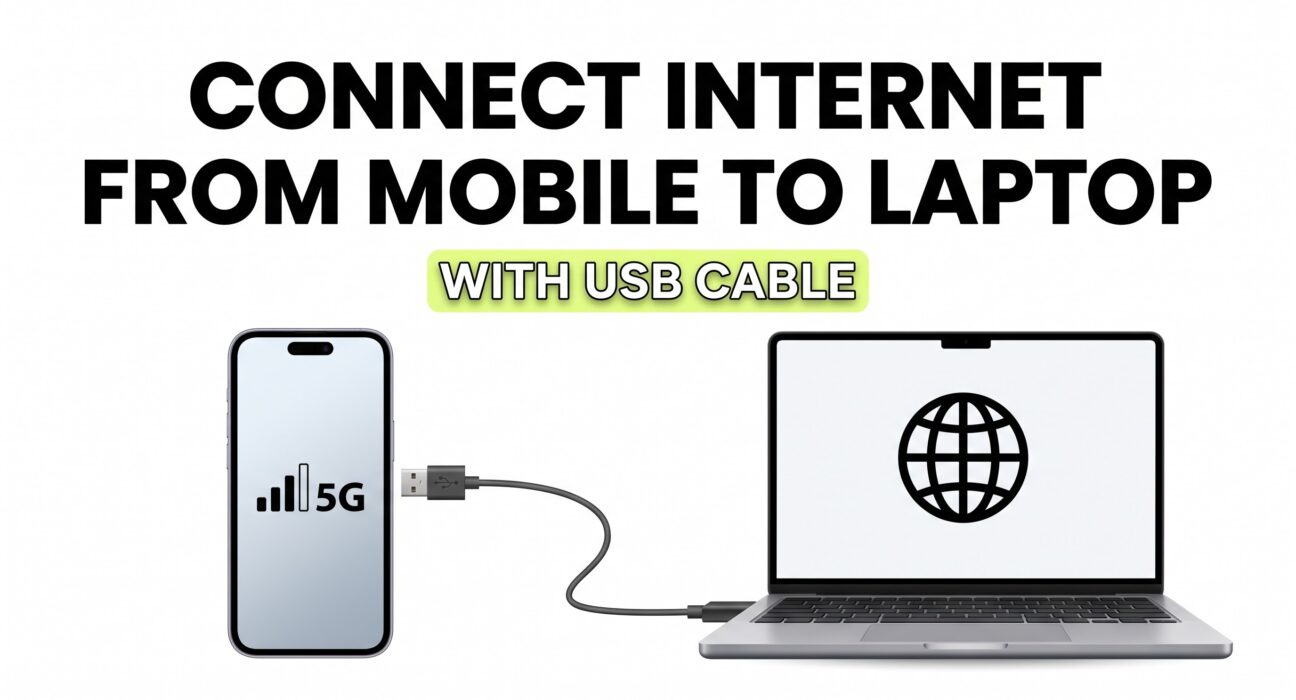
Most smartphones can share their mobile internet connection with a laptop using a USB cable. This feature is called USB tethering, and it is one of the easiest ways to get your laptop online without connecting to a Wi-Fi network.
The process is usually simple: connect your phone to your laptop with a USB cable, turn on mobile data, enable USB tethering, and your laptop should detect the internet connection automatically.
In this guide, you’ll learn exactly how to connect internet from mobile to laptop with a USB cable, whether you’re using an Android phone or an iPhone. We’ll also cover common problems, useful tips, and answers to frequently asked questions.
What Is USB Tethering?
USB tethering is a feature that allows your smartphone to share its mobile internet connection with another device through a USB cable.
For example, if your phone has a working 4G or 5G mobile data connection, you can connect it to your laptop with a USB cable and allow the laptop to use that same internet connection.
Think of your phone as a small internet source and the USB cable as the direct connection between your phone and laptop.
Unlike a mobile hotspot, which shares the internet wirelessly through Wi-Fi, USB tethering uses a physical cable.
Why Use a USB Cable to Share Mobile Internet?
You might be wondering why you should use a USB cable when your phone already has a Wi-Fi hotspot feature.
The answer is simple: USB tethering can be more convenient in certain situations.
Some of the main benefits include:
- A direct and stable connection between your phone and laptop
- No need to search for or connect to a Wi-Fi hotspot
- Your phone can charge while connected to the laptop
- It may use less battery than keeping a Wi-Fi hotspot active
- It is useful when Wi-Fi hotspot connections are causing problems
- It can be a good option when you only need to connect one device
If you’re sitting close to your laptop and have a USB cable available, this method is often quick and hassle-free.
What You Need Before You Start
Before enabling USB tethering, make sure you have the following:
- A smartphone with an active mobile data plan
- A USB cable that supports data transfer
- A laptop or desktop computer with a USB port
- Mobile data turned on and working properly
One important thing to remember is that not every USB cable supports data transfer.
Some inexpensive or old cables may only charge your phone. If USB tethering does not appear to work, trying another cable is often one of the first things you should do.
How To Connect Internet From Android Mobile To Laptop With USB Cable
If you have an Android phone, follow these steps.
Step 1: Connect Your Phone to Your Laptop
Take a USB cable and connect one end to your Android phone and the other end to your laptop.
Your phone may start charging immediately. That’s normal, but charging alone does not mean USB tethering is active yet.
Keep both devices connected.
Step 2: Turn On Mobile Data
Open the Settings app on your Android phone.
Turn on Mobile Data and make sure the internet is working on your phone.
You can quickly test this by opening a website or app that requires an internet connection.
If the internet is not working on your phone, it will not work on your laptop through USB tethering either.
Step 3: Open the Tethering Settings
The exact location of this setting depends on your phone brand and Android version.
On many Android phones, you may find it under a path similar to:
Settings > Network & Internet > Hotspot & Tethering
On some phones, it may appear under:
Settings > Connections > Mobile Hotspot and Tethering
Or you may see options such as:
- Portable Hotspot
- Tethering
- More Connection Settings
- USB Tethering
If you cannot find it, use the search bar inside your phone’s Settings app and search for USB tethering.
Step 4: Turn On USB Tethering
Once you find the option, tap the switch next to USB Tethering.
Your laptop should detect the new internet connection automatically.
On many Windows laptops, you may briefly see a message showing that a new network connection has been detected.
Wait a few seconds, then open your browser and try visiting a website.
If the page loads, your laptop is now using your phone’s mobile internet.
Step 5: Check the Connection on Your Laptop
If you’re using Windows, look at the network icon in the taskbar.
Your laptop may show that it is connected through an Ethernet-style network connection rather than Wi-Fi. This is normal because USB tethering creates a wired connection between your phone and computer.
Open a few websites to make sure the internet is working properly.
How To Connect Internet From iPhone To Laptop With USB Cable
iPhone users can also share their mobile internet connection with a computer using a USB cable.
The process may vary slightly depending on whether you’re connecting to a Windows laptop or a Mac.
Step 1: Connect Your iPhone to Your Laptop
Connect your iPhone to the laptop using a compatible USB cable.
If your iPhone asks whether you trust the computer, choose Trust and enter your passcode if required.
Step 2: Turn On Mobile Data
Open Settings and make sure Cellular Data is turned on.
Your iPhone needs an active internet connection before it can share that connection with your laptop.
Step 3: Open Personal Hotspot Settings
Go to:
Settings > Personal Hotspot
Turn on the option that allows other devices to join or connect to your internet connection.
Step 4: Check the Connection on Your Laptop
Your laptop should detect the iPhone as a network connection.
On some Windows computers, you may need the necessary Apple device software or drivers for the connection to work properly.
Once the connection is established, open a browser and test the internet.
USB Tethering Not Working? Try These Simple Fixes
Sometimes everything looks correct, but your laptop still does not get internet access. Don’t worry. In many cases, the problem is easy to fix.
Check Your USB Cable
This is one of the most common issues.
Your cable may be charging the phone but not transferring data. Try another USB cable, preferably the original cable that came with your phone or a known data-transfer cable.
Disconnect and Reconnect the Cable
Remove the USB cable from your laptop and phone.
Wait a few seconds, then connect it again.
After reconnecting, check whether the USB Tethering option becomes available.
Turn USB Tethering Off and On Again
Disable USB tethering, wait for a few seconds, and enable it again.
This can refresh the connection between your phone and laptop.
Restart Your Phone and Laptop
A simple restart can solve temporary software or network issues.
Restart both devices, reconnect the USB cable, and try again.
Make Sure Mobile Data Is Working
Open a website directly on your phone using mobile data.
If your phone cannot access the internet, the problem may be with your mobile network or data plan rather than USB tethering.
Try a Different USB Port
If your laptop has multiple USB ports, try connecting the cable to another port.
Sometimes a particular USB port may have a temporary issue.
Update Network or USB Drivers
If you’re using Windows and the phone is connected correctly but the laptop still does not recognize the network, outdated drivers could be the problem.
Check Windows Update and your laptop manufacturer’s support software for available updates.
USB Tethering vs Mobile Hotspot: Which One Is Better?
Both methods allow your phone to share its internet connection, but they work differently.
USB Tethering is usually better when:
- You want to connect only one laptop or computer
- You want a direct wired connection
- Your phone is already close to the laptop
- You want to charge your phone while sharing internet
- You don’t want to keep Wi-Fi hotspot active
Mobile Hotspot is usually better when:
- You want to connect multiple devices
- You don’t have a USB cable
- You want to connect wirelessly
- Your devices are not sitting close together
Neither option is always better than the other. It depends on how you plan to use the connection.
Does USB Tethering Use Mobile Data?
Yes. USB tethering uses the mobile data connection from your smartphone.
Any websites you browse, files you download, videos you watch, or apps you use on your laptop can consume data from your mobile plan.
This is especially important if your mobile data plan has a daily or monthly limit.
If you’re using a limited plan, avoid downloading large files or streaming high-quality videos unless you know how much data you have available.
Useful Tips for Using USB Tethering
A few small habits can make the experience smoother.
Use a Good-Quality Cable
A poor-quality cable can cause the connection to disconnect randomly.
Using a reliable cable that supports data transfer can prevent many problems.
Watch Your Data Usage
Laptops can use more data than phones without you realizing it.
Background updates, cloud backups, software downloads, and browser tabs can consume a large amount of mobile data.
If your data plan is limited, consider pausing unnecessary updates while tethering.
Keep Your Phone Charged
USB tethering often allows your laptop to charge your phone at the same time.
However, charging speed can vary depending on the laptop and USB port.
If you’re using mobile data for a long time, check your battery level occasionally.
Stay in an Area With Good Mobile Signal
Your laptop’s internet speed depends heavily on your phone’s mobile network connection.
If your phone has a weak signal, the tethered connection may also be slow or unstable.
Moving to an area with better 4G or 5G coverage can improve the connection.
Is USB Tethering Safe?
USB tethering is generally a secure way to share your phone’s internet connection because it uses a direct physical connection between your phone and laptop.
Unlike a public Wi-Fi network, other nearby devices cannot simply connect to your USB tethering connection.
Still, you should keep your laptop updated and avoid opening suspicious websites or downloading unknown files.
The security of your internet activity also depends on the websites and services you use.
Final Thoughts
Connecting internet from your mobile to your laptop with a USB cable is a simple solution when Wi-Fi is unavailable or unreliable.
For most Android users, the process takes only a few moments: connect the phone, turn on mobile data, enable USB tethering, and check the connection on your laptop. iPhone users can use a similar approach through the Personal Hotspot feature.
If the connection doesn’t work immediately, don’t assume there’s a major problem. In many cases, switching to a different USB cable, reconnecting the devices, or restarting them is enough to fix it.
So the next time your Wi-Fi stops working or you need internet while away from home, grab your USB cable and use your phone’s mobile data to get your laptop back online.