
Encountering a “White Screen of Death” or a cryptic “Critical Error” message on your WordPress site can be a heart-stopping moment. However, most of these issues stem from simple PHP conflicts—either a syntax error in a file or a compatibility issue between themes.
The most effective way to resolve these issues is not through guesswork, but through systematic debugging. By learning how to read the “language” of your server, you can pinpoint the exact file and line number causing the crash. This step-by-step guide to WordPress debugging will show you how to turn on the “lights” in your code and fix errors like a pro.
1. Enable WP_DEBUG in Your Config File
By default, WordPress hides PHP errors from public view to keep your site looking professional and secure. To see what’s wrong, you need to enable the built-in debug mode.
- Access your site via FTP or File Manager.
- Open the
wp-config.phpfile in your root directory. - Look for the line:
define( 'WP_DEBUG', false ); - Change it to:
define( 'WP_DEBUG', true );
Based on industry research, it is best practice to also enable the debug log so you can review errors without them cluttering your live site design.
2. Creating a Private Debug Log
If you don’t want error messages appearing on the front end for visitors to see, add these lines below the WP_DEBUG line:
define( 'WP_DEBUG_LOG', true );define( 'WP_DEBUG_DISPLAY', false );
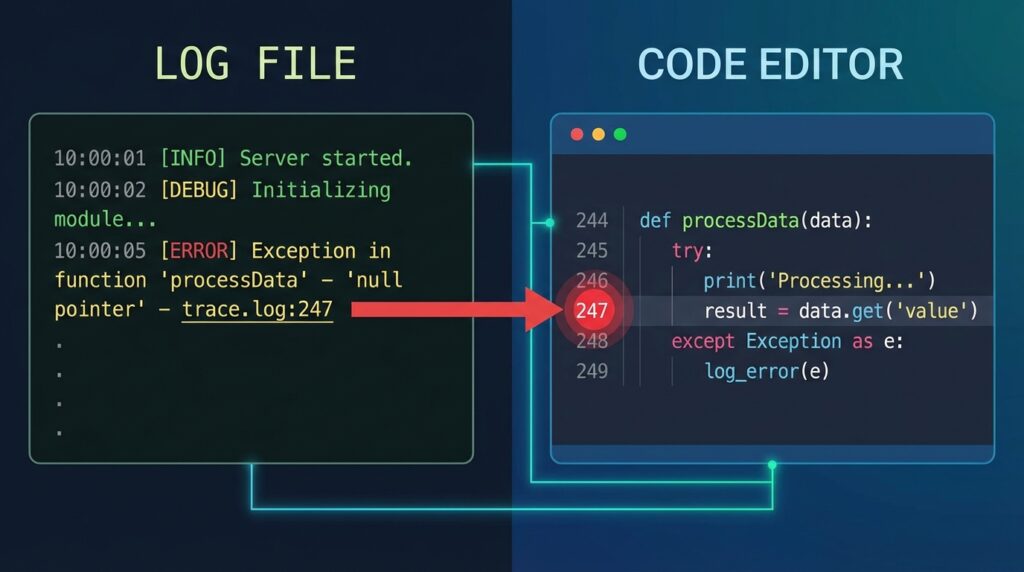
This creates a file named debug.log inside your /wp-content/ folder. You can open this file to see a timestamped list of every error occurring on your site.
3. Understanding Common PHP Error Types
A common mistake to avoid is panicking when you see a “Parse Error.” Here is how to read the log:
- Parse Error / Syntax Error: You missed a semicolon
;or a curly bracket{in your code. - Fatal Error: A function was called that doesn’t exist (often happens after deleting a plugin).
- Warning/Notice: These won’t break your site, but they indicate code that might cause issues in future PHP versions.
4. The “Process of Elimination” Method
If the debug log doesn’t point to a specific custom script, use the standard isolation technique:
- Switch to a Default Theme: Activate Twenty Twenty-Four. If the error vanishes, the issue is in your theme.
- Deactivate All Plugins: Rename your
pluginsfolder toplugins_old. If the site loads, one of your plugins is the culprit.
Final Thoughts
Debugging PHP is a rite of passage for every WordPress site owner. Once you stop fearing the error messages and start reading them as “instruction manuals” for what to fix, you gain total control over your website’s health.




Leave feedback about this