

After nearly two decades of dominance, you would think every corner of the WordPress dashboard has been explored. Most bloggers live in the “Posts” and “Settings” menus, assuming the rest is just fluff. However, hidden beneath the surface are powerful, native utilities that can replace expensive plugins, streamline your workflow, and give you a technical edge over your competitors.
The most effective way to master the platform is to stop looking for external solutions and start leveraging the “hidden” core. This step-by-step guide to overlooked WordPress features will reveal the professional-grade tools sitting right under your nose that most “pro” bloggers haven’t even clicked on yet.

1. The Power of “Site Health” for Instant Audits
Most developers install heavy plugins to check for security vulnerabilities or server issues. However, under Tools > Site Health, WordPress provides a comprehensive diagnostic suite.
- The Performance Tab: It will tell you if your server is running an outdated version of PHP or if your SQL server is lagging.
- Security Checks: It identifies if your themes or plugins are using insecure communication protocols.
A common mistake to avoid is ignoring the “Passed Tests” section. Expanding this reveals exactly how WordPress sees your server environment—allowing you to fix issues before they become site-crashing errors.
2. Native “Lazy Loading” and Image Sub-sizes
Since WordPress 5.5, the core software has included native lazy loading for images. Many bloggers still pay for optimization plugins to do exactly what WordPress does for free.
- The “Secret” Sub-sizes: Did you know that every time you upload an image, WordPress creates up to 7 different sizes in the background?
- The Pro Move: You can control these via
options.php(the “hidden” settings page). By fine-tuning these sizes, you ensure that mobile users never download a “Desktop-sized” image, saving bandwidth and improving your LCP (Largest Contentful Paint) score in RankMath.
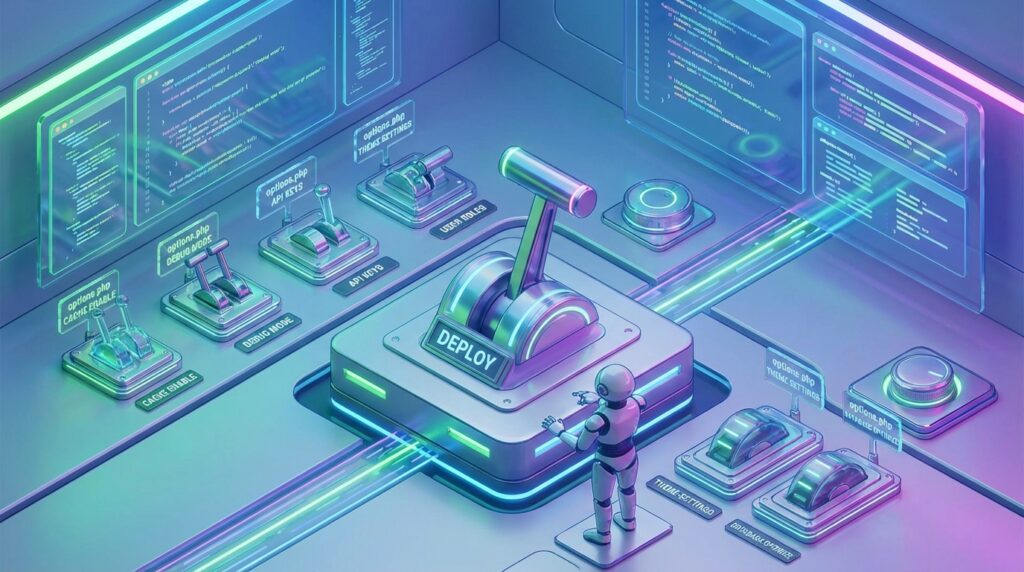
3. The “options.php” Hidden Master Menu
There is a “secret” settings page that contains every single configuration bit for your entire site. You won’t find it in the sidebar.
- How to access it: Navigate to
yourdomain.com/wp-admin/options.php. - Why it matters: This is a centralized list of every setting from every plugin you’ve ever installed. It’s the fastest way to find “leftover” data from deleted plugins that might be slowing down your database.
Based on industry research, cleaning up “orphan” options in this menu can reduce database query times by up to 15%.
4. Advanced Custom Fields (ACF) Logic in Core
You don’t always need the ACF plugin for simple data. WordPress has a “Custom Fields” meta-box that has been there since the beginning.
- The Use Case: If you want to add a “Reading Time” or a “Review Score” to your posts, you can use native Custom Fields.
- The Developer Edge: Calling these fields using
get_post_meta()is significantly faster and uses less memory than calling them through a heavy third-party framework.
5. Post Type “Shadow” Features: Revisions & Autosaves
Everyone knows about Revisions, but few know how to engineer them.
- The Autosave Interval: By default, WordPress saves your work every 60 seconds. If you have a slow connection or a busy server, this can cause “Admin-Ajax” lag.
- The Fix: You can change this to 300 seconds in your
wp-config.php. It keeps your editing experience smooth while still protecting your work.
6. The “Export Personal Data” Security Tool
With GDPR and privacy laws becoming stricter in 2026, many bloggers buy privacy plugins. WordPress has built-in tools under Tools > Export Personal Data and Erase Personal Data.
- The Pro Benefit: This allows you to stay compliant with global privacy laws without adding any code to your front-end, keeping your site speed high.
7. Native “Patterns” for Design Consistency
Instead of using a page builder to create the same “Call to Action” box over and over, you can use Block Patterns.
- Why it’s better: Patterns are just HTML. They don’t load external CSS or JS libraries. You can create a “Master Pattern” for your newsletter sign-ups and update it site-wide in seconds.
Final Thoughts
The “Pro” in Professional Blogger doesn’t just stand for someone who makes money; it stands for someone who understands their tools. By mastering these hidden native features, you reduce your reliance on third-party plugins, improve your site’s security, and ensure your blog is built on a foundation of clean, efficient code.






Leave feedback about this